Find it. Scan it. Sell it.
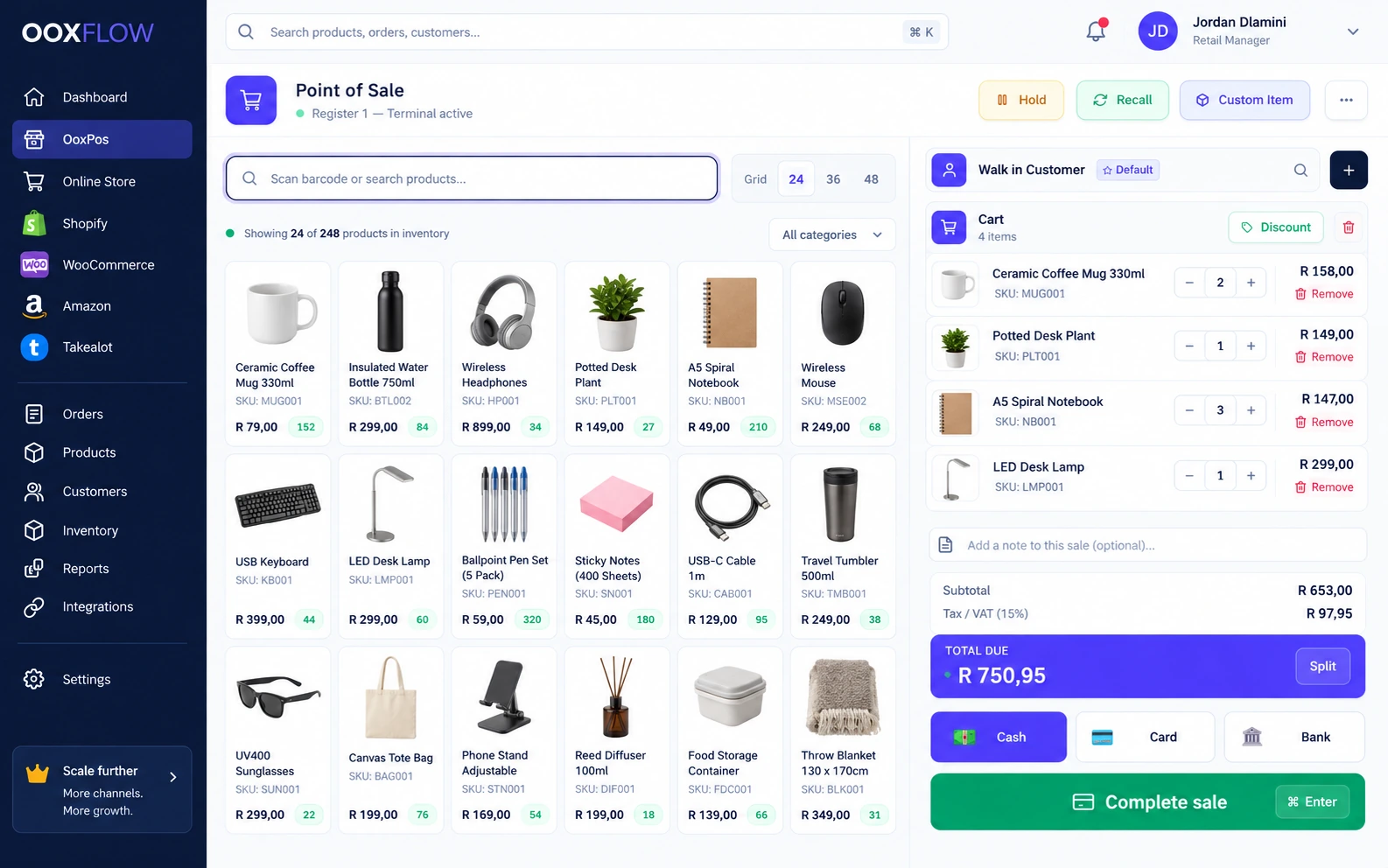
Search your products or scan a barcode. Choose the right item, size or colour. Check the quantity and customer before saving the sale.
 OnlinePOS.app
[email protected][email protected]Both addresses reach the same support team — email either one.
Start freePOS means point of sale. Sell at the till, manage stock and create quotes. Sync means keeping linked information updated between your shop and online selling accounts.
Made in South Africa. Built for the world.
 OOXFLOWSHOP STOCK
A confirmed till sale updates stock, documents and connected channel queues.
Start with the till. Connect the rest.
Sell, manage products, create quotes, receive stock and connect your Online Store in one place.
Keep the product, customer, payment, receipt and stock change together for each sale.
Search your products or scan a barcode. Choose the right item, size or colour. Check the quantity and customer before saving the sale.
Set prices for retail, trade and bulk buyers. Use customer price groups and quantity discounts. Check discounts and tax before saving.
Put an unfinished sale on hold. Serve the next customer, then open the saved basket when the first customer is ready.
When online, record cash, card, bank transfer or split payments. A card payment record needs your own payment terminal or payment setup.
Create a receipt or invoice PDF from the saved sale. It shows the items and tax. Keep past sales ready to check later.
A confirmed point-of-sale (POS) sale changes your stock. OOXFLOW then sends stock updates to linked selling accounts. Your location and pack settings decide the quantity sent.
Give staff a clear place to serve customers. Keep the sale details ready to check later.
Use the product list to find missing details, assign work, update prices and find where stock is kept.
Use table, grid or compact views. Filter by category, supplier, price, stock, rack, staff member or listing quality. Save a useful view. Quick filters show low stock, sold-out items, missing images and missing costs.
Give each product option, such as a size or colour, its own barcode, price and stock. Check price groups, bulk prices and packs. See which online listings are linked to the product.
While adding or editing one product, draft its title, description and SEO text for search engines. Compare and edit the drafts. Apply the fields you want, then save. Check images, category and barcode before listing the item online.
Select products from your filtered list. Assign data fixes or stock counts. Preview bulk size, weight or supported price changes. Export as CSV, Excel or PDF. Each action needs the right permission.
Use rack and shelf names to find stock. Assign staff and keep a history of rack handovers. Scan rack labels during phone counts. Moving one product to another rack does not change its assigned staff member.
See the last approved count, expiry warnings and stock history. Mark an item discontinued to sell the remaining stock without buying more. Disable it to stop active selling while keeping its records.
Stock, also called inventory, is what you have to sell. Keep records of goods received, approved counts and transfers between locations.
See what is in the shop, back room and warehouse. Rack and shelf details help staff find items and move stock to where it is needed.
Request, approve and send a stock transfer. Track items on the way. Receive part of a delivery, or give a reason when some items do not arrive.
Count items on a computer or phone. Submit the count for review. A person with approval permission approves the change. Saving a count alone does not change stock.
Keep suppliers, purchase orders and received goods together. Check the location, quantity and cost before adding the purchase to stock.
See each sale, purchase, count, transfer and adjustment. Open the record to find who made the change and which document it came from.
Choose which locations supply each online account. Warehouse links, packs and combo items can make each store show a different stock quantity.
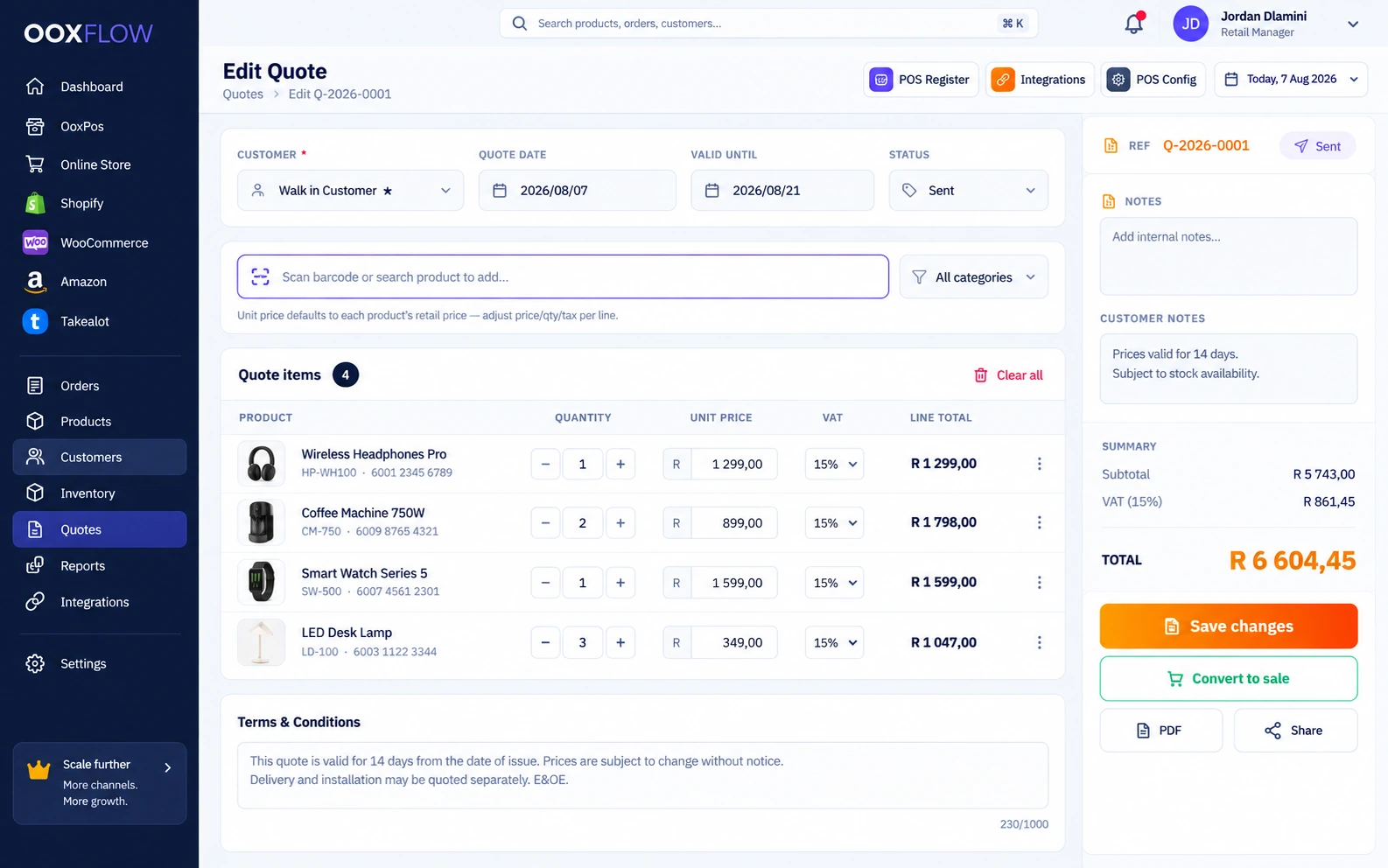
Keep customer quotes, invoices and payments together.
Choose staff access, count the till at closing and check money owed by customers or to suppliers.
Give staff permission to work at selected locations. Permission to view stock does not automatically give permission to sell or change it there.
Start a shift with a cash float. Record cash added or taken out, then count the till at closing. Show any difference. The opening float is not sales income.
See what you owe suppliers and what customers owe you. Record invoice payments, check overdue amounts and preview how a payment is split across invoices.
Import supported products, brands, categories, suppliers, customers and stock adjustments from CSV or Excel. Check new, changed and invalid rows first. Owner access and a paid POS plan are required.
Look up stock, count items and check daily work on a phone. Staff permissions and location access still apply.
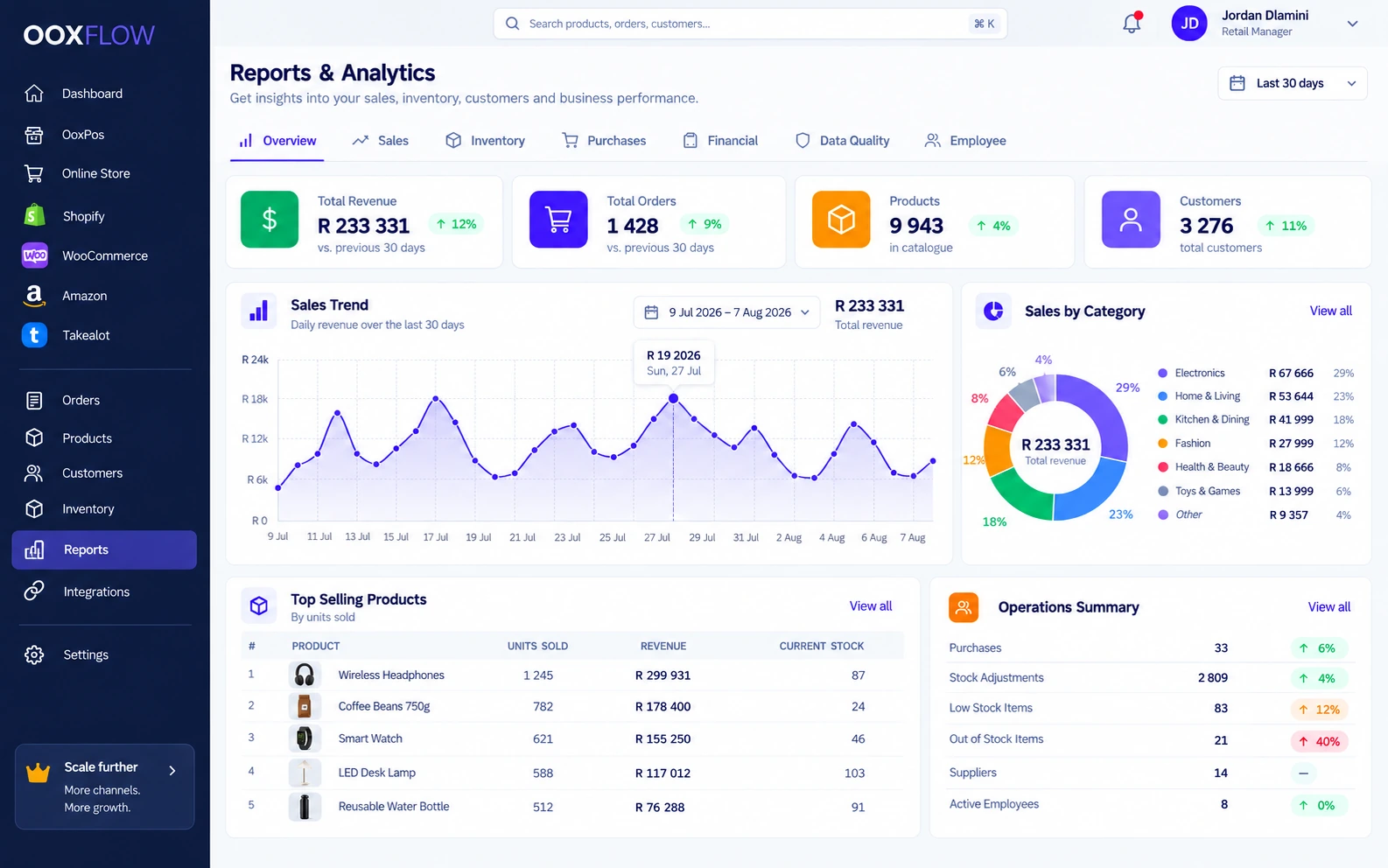
Keep the till, purchases, stock, customers and selling accounts in one place. Open the sale or purchase behind a total to see how it was worked out.
See sales and missing details together. Open a warning to find and fix the problem.
The dashboard shows missing images, barcodes, descriptions, categories and racks. It also shows old stock counts. Open the matching product list to fix the problem.
My Tasks brings counts, product requests, category requests and customer questions together. See what needs your action and what is waiting for someone else. Check each product before marking the work done.
See sales and purchase charts beside stock and expiry warnings. Open the product, task or report to check the details and take the next step.
Reports show connected sales together. Some reports show only till sales, and are labelled clearly.
Prepare each device online before using it without internet. Make sure staff know which payments work and how to check sales after reconnecting.
Open the till on the device over a secure internet connection. The browser saves the till and product list for offline use.
Save cash sales on the device. Each gets a unique ID. Card and split payments are blocked. Online accounts have not received the stock update yet.
When internet returns, send saved sales using the same IDs to avoid duplicates. Check failed sales and stock. Separate offline tills can sell the same last item.
Offline prices and stock may be old. Devices without internet cannot keep stock updated between each other.
Connect your Online Store and other selling accounts to your products and stock settings.
Importing orders, changing POS stock and sending customer parcels are separate jobs. Each channel page explains what it supports, including Shopify listings, Takealot price changes and stock held by Amazon.
Bring approved sellers into your store.
Let other sellers apply to sell in your Online Store. Approve products, split orders by seller, track commission and record manual payments to sellers.
POS means point of sale: the till where you record a sale. Online POS includes the till and shop tools inside OOXFLOW. OOXFLOW also connects your Online Store, Shopify, WooCommerce, Takealot and Amazon. Start with the till and add selling accounts when you need them.
No. The till records how the customer paid. When online, record card, bank, cash or split payments. A card record does not process the payment or connect a card machine by itself.
No. Reading orders and changing POS stock are separate actions. Stock changes follow a confirmed sale or another approved stock action. Importing an order does not deduct the same stock twice.
Each account can use different locations and stock settings. Packs need enough units for a whole pack. Combos need all their parts. FBA means Fulfilment by Amazon: Amazon holds and sends that stock, so its quantity comes from Amazon.
Yes. Staff save the count, then submit it for review. A person with count-approval permission approves the change. Saving or submitting a count does not change live stock.
First open the till online on that device using a secure connection. The browser can then keep a local copy for cash sales. Card and split payments do not work offline. Saved sales wait on the device and are sent when it reconnects, using the same sale IDs to avoid duplicates. Prices and stock may be old. Separate offline tills can sell the same last item.
Yes. Confirm the quote-to-sale choices and payment details. The app checks stock before making the sale. It can refuse the sale if stock is too low. A draft quote does not reduce stock.
Choose a plan. Add your products. Connect the stores you use.