Lower the price to compete
A competitor sells at R349. The suggested price is R348, if your price limits allow it.
 OnlinePOS.app
[email protected][email protected]Both addresses reach the same support team — email either one.
Start freeBring Takealot products, sales and fees into OOXFLOW. Send linked POS stock to Takealot. Use Auto Price within your chosen limits.
Made in South Africa. Built for the world.
 OOXFLOWSHOP STOCK
Automatic pricing with minimum and maximum boundaries.
A simple look at the main tools. Full details and setup steps are below.
Auto Price must be enabled for each chosen product. A suggested or sent price still needs Takealot confirmation. Winning the Buy Box is not guaranteed.
Compare all connectionsWhen a competitor has a lower price, enabled Auto Price checks your limits and sends a new price. See each step and wait for Takealot confirmation.
A competitor sells at R349. The suggested price is R348, if your price limits allow it.
A competitor raises the price to R369. The suggested price can rise to R368, within your maximum.
A competitor sells at R319. The target is R318, but your R329 minimum keeps the price at R329.
A competitor sells at R429. The target is R428, but your R399 maximum limits the price to R399.
A successful check finding no competitor can use your R399 maximum-price rule. A failed check cannot use that rule.
If checking or sending fails, keep the last confirmed price visible. Review the problem and retry. A suggestion is not a live price.
Example: R348 selling price minus R52.20 commission, R30 delivery and R200 goods cost leaves R65.80 estimated profit. Actual charges can differ. Minimum and maximum price rules use a separate calculation.
Change the POS cost. Linked offers then get the new cost in the background. Enabled price rules are recalculated before the next price check. Combos need every item cost. Earlier sales keep their saved goods cost; later fee updates can change profit.
These figures are examples. A confirmed price does not guarantee the Buy Box. This preview sends no live updates to Takealot.
Read sales and product details from Takealot. Send POS stock and enabled price updates back. Choose product links and rules for each account.
Products, offers, sales and fees come from Takealot into your chosen account. Check whether products can be bought, order progress and failed updates.
Link an offer to a product, pack or combo. Choose stock locations and warehouses. Check the last count, turn on stock sync and compare quantities.
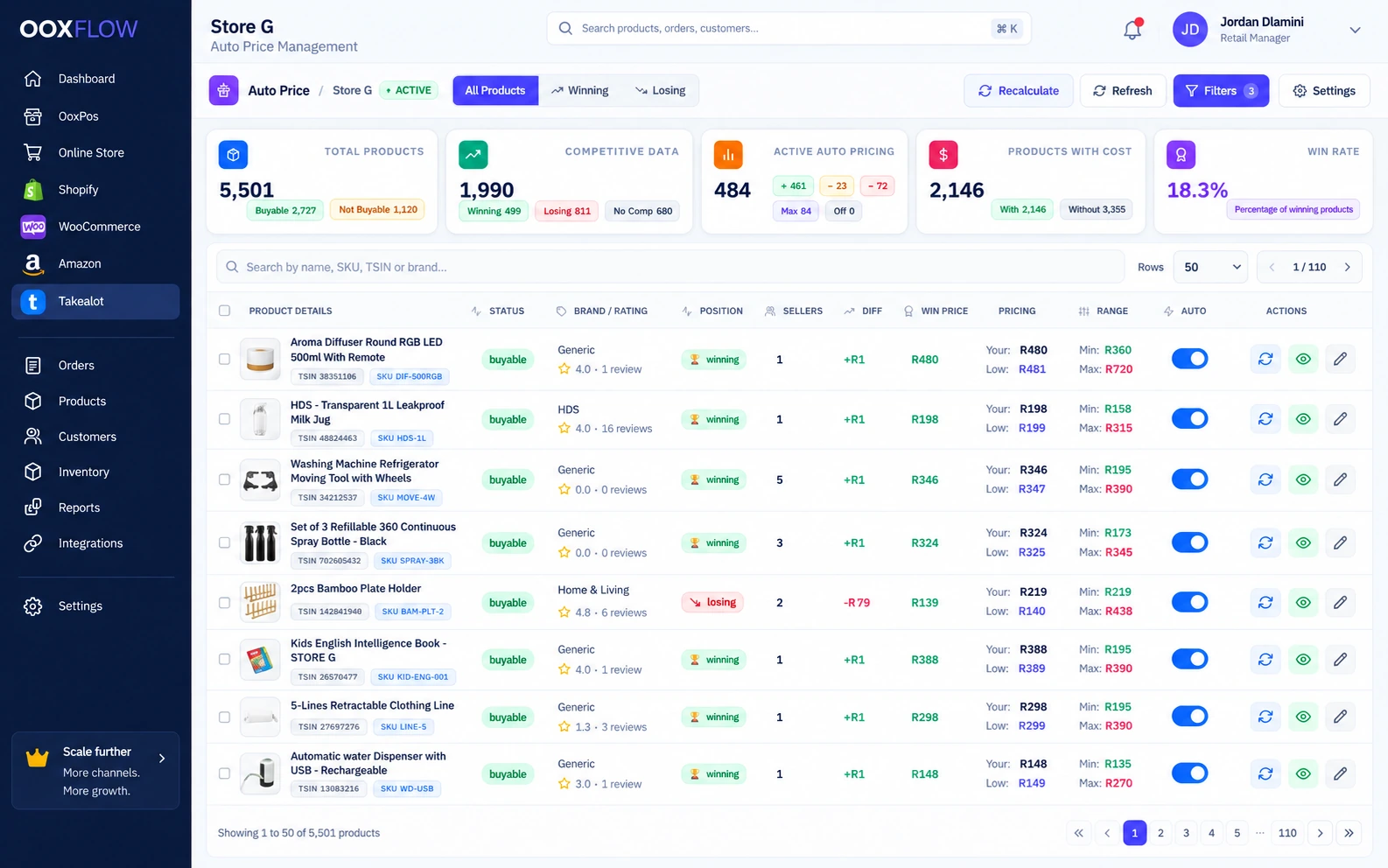
When a competitor has a lower price, enabled Auto Price checks a new price within your limits. See the suggested price, sent update and Takealot confirmation separately.
Check warehouse sales, stock needed for your target days, deliveries on the way and warehouse limits. Choose the stock source, fill the shipment file and request purchases for shortages.
Connect when you are ready. Your POS, product history and other connected stores stay in the same account.
Use the same product list, stock records and reports for your daily work.
Link Takealot offers and TSIN product numbers to POS products. Review listings that still need a match.
Send stock from the locations and warehouses you choose. Use complete packs and combos.
Target R1 below the rounded competitor price. Move prices up or down within your cost, minimum and maximum rules.
See sales, orders, delivery progress and problems in the Takealot pages.
See sale amounts, saved goods cost and marketplace fees. Price estimates also include commission and delivery.
Connect several Takealot seller accounts under one OOXFLOW business.
See the tools you can use for daily sales and store tasks.
Read products, offers, sales and fees from the Takealot API. See import progress and problems before using reports.
Link Takealot offers and TSIN product numbers to POS products. Choose the stock locations and warehouses. Send quantities as complete packs or combos.
Set a price R1 below the rounded competitor price. Prices can move up or down within your chosen limits.
Keep cost, minimum and maximum price limits. A successful check finding no competitors can use your maximum-price rule. A failed check needs attention.
See the suggested price, queued update and price confirmed by Takealot separately. Takealot price confirmation does not guarantee the Buy Box.
Linked offers use the POS product cost. Combo cost adds every required item cost. Missing costs stay unknown. Saved sale costs change only through a chosen re-cost action.
Estimate profit after commission, delivery and goods cost. The minimum and maximum pricing rules use their own calculation. Later fees can update past sale profit.
Use Insights to prepare a stock shipment file for Johannesburg, Cape Town and Durban warehouses.
Use this separately paid tool to upload a Takealot stock-claim file, check its lines and create a numbered invoice PDF. Find and download past invoices.
Check stock, products, sales and profit in Takealot reports.
Compare POS stock with Takealot quantities. Find failed or missing updates. Turn on stock sync for linked products. Check racks and last-count dates before sending stock.
Plan stock for JHB, CPT and DBN using sales and the stock needed for your target days. Check stock there, stock on the way, warehouse limits, whole packs and the chosen source.
Upload the Takealot shipment file. Check suggested quantities and download the filled file. Create separate price and leadtime files; leadtime means days needed to send an order.
Turn a stock shortage into a purchase request with a suggested quantity. Receive the purchase before planning the actual stock shipment.
Check missing POS links, low stock and listing status separately. Review low profit, returns, falling sales and slow sellers before making changes.
Keep each sale’s saved goods cost. Update fees when Takealot supplies them. Show missing costs and fees so profit is not overstated.
Only after you turn on Auto Price and set the limits. You control the minimum and maximum prices.
Yes. Linked products use POS stock. Your location, pack and channel rules decide the quantity sent.
Yes. Use several seller accounts with the same login and product list.
No. A sent update still needs Takealot confirmation. Even a confirmed price does not guarantee the Buy Box.
A failed check does not mean there are no competitors. Keep the last confirmed price and review the retry. Only a successful check finding no competitor can use your maximum-price rule.
No. Recon Invoice is a separate paid service. Upload a claim file, check the preview and create a numbered invoice PDF. Keep the invoice history. Check the price before turning it on.
Products, offers, sales and fees come from Takealot into OOXFLOW. Linked POS products supply the stock and costs used for stock updates and enabled price rules.
Yes. Use sales, warehouse stock, stock on the way and warehouse limits to plan a shipment. Preview and download the filled shipment file. Create purchase requests for shortages.
See the stock, reports and seller tools that support your online shops.
Manage locations, stock counts, transfers and buying. Choose which stock locations supply online orders.
Explore inventory and purchasingCheck sales, stock and costs. Choose the right channel and report for the numbers you need.
Explore sales and inventory reportsUse the optional add-on to approve sellers and products. Set commission and record manual seller payments.
Explore let other sellers use your storeChoose a plan. Add your products. Connect the stores you use.