Connect the existing store
Approve access in WordPress or use the API-key guide. Test the connection and start the first import. Keep records separate for each connected shop.
 OnlinePOS.app
[email protected][email protected]Both addresses reach the same support team — email either one.
Start freeConnect your existing WooCommerce shop to POS products and stock. Manage the records without another spreadsheet.
Made in South Africa. Built for the world.
 OOXFLOWSHOP STOCK
Order imports, product publishing and stock pushes have their own workflows.
A simple look at the main tools. Full details and setup steps are below.
Keep your existing WooCommerce website. Review product links, variation choices and connection replies before relying on an update.
Compare all connectionsKeep your WooCommerce website. Manage its products, variations, customers, orders and update history in OOXFLOW.
Approve access in WordPress or use the API-key guide. Test the connection and start the first import. Keep records separate for each connected shop.
Check products, variations and categories. Match barcodes where possible. Preview POS, CSV or supported channel products before a bulk upload.
Send supported stock or price changes to linked WooCommerce products and variations. Keep your rules for showing and hiding products.
Webhooks are automatic updates from your store. Check their security signatures. Review failures, retry using the latest record and check the result.
Connect when you are ready. Your POS, product history and other connected stores stay in the same account.
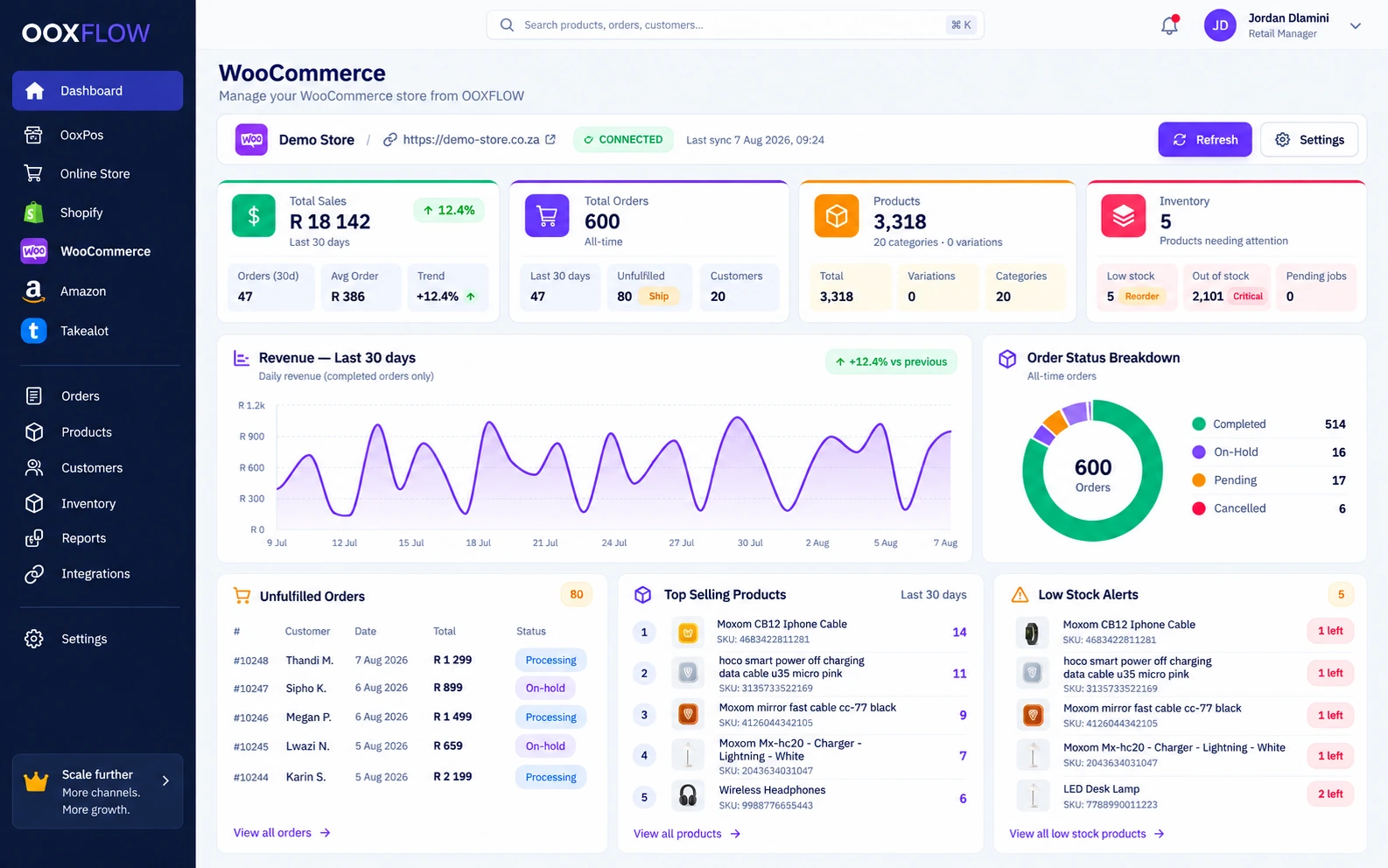
Use the same product list, stock records and reports for your daily work.
Use the connection guide or API-key setup for your existing WordPress shop.
Keep products, variations, categories, images, barcodes and prices updated.
Import WooCommerce orders and customers. See order status and the items bought.
Send stock updates after confirmed sales, purchases, returns and approved stock counts.
Match WooCommerce items to POS products by barcode where possible.
Check security signatures on incoming updates. Keep failures for review and read the latest record when retrying.
See the tools you can use for daily sales and store tasks.
Import WordPress products, variations and categories. Match each variation to the correct POS product.
Preview products from POS, CSV, Shopify or Takealot. Follow the bulk upload and check each product result.
Match existing products and variations by barcode where possible. Review products without matches before sending updates.
Send supported stock or price changes to linked products and variations. Keep the rules for showing products clear.
Check the security signature on incoming order updates. Update the imported order record without creating a second till sale.
Keep failed updates for review. On retry, read the latest product, order or customer record. Show failures until they are fixed.
Use your hide and show rules when stock changes. Keep control of your WordPress shop.
Connect several WordPress shops. Keep each shop’s product list, updates and job history separate.
Approve access in WordPress or use the API-key setup guide. Test the store before reading its first records.
Check sales, top sellers, orders not sent and low stock. Open a customer’s imported order history.
View categories and subcategories. Edit supported variation prices or stock and send the changes to WooCommerce.
Choose an update job. Watch product-by-product progress and check failures before retrying.
No. Customers keep using your existing WooCommerce website.
Yes. Match each WooCommerce variation to the right POS product variant.
Yes. Each connected WooCommerce store keeps its own records and update history.
Use POS products, CSV or a connected Shopify or Takealot product list. Preview the source and options, then follow each product’s upload result.
The retry updates the imported WooCommerce record. It does not create a second till sale or another stock deduction. Confirmed POS changes send stock through a separate job.
Yes. Preview the source and upload options, start the job and check progress and product results.
See the stock, reports and seller tools that support your online shops.
Manage locations, stock counts, transfers and buying. Choose which stock locations supply online orders.
Explore inventory and purchasingCheck sales, stock and costs. Choose the right channel and report for the numbers you need.
Explore sales and inventory reportsUse the optional add-on to approve sellers and products. Set commission and record manual seller payments.
Explore let other sellers use your storeChoose a plan. Add your products. Connect the stores you use.